How to Set Up AWS WorkMail on Outlook
This guide will walk you through the steps to set up your AWS WorkMail account on Outlook on the desktop app.
Requirements
- AWS WorkMail email address and password
- Domain information for your WorkMail account
1. Download and Install the Outlook App
- On Windows or Mac, download the Microsoft Outlook app from the official website or App Store.
- Open the app once it’s installed.
2. Adding Your AWS WorkMail Account to Outlook
-
Open the Outlook app
-
If you are already signed in with a personal account click the
Plusbutton on the left aside -
Otherwise keep going

- Enter your AWS WorkMail email address. (e.g:
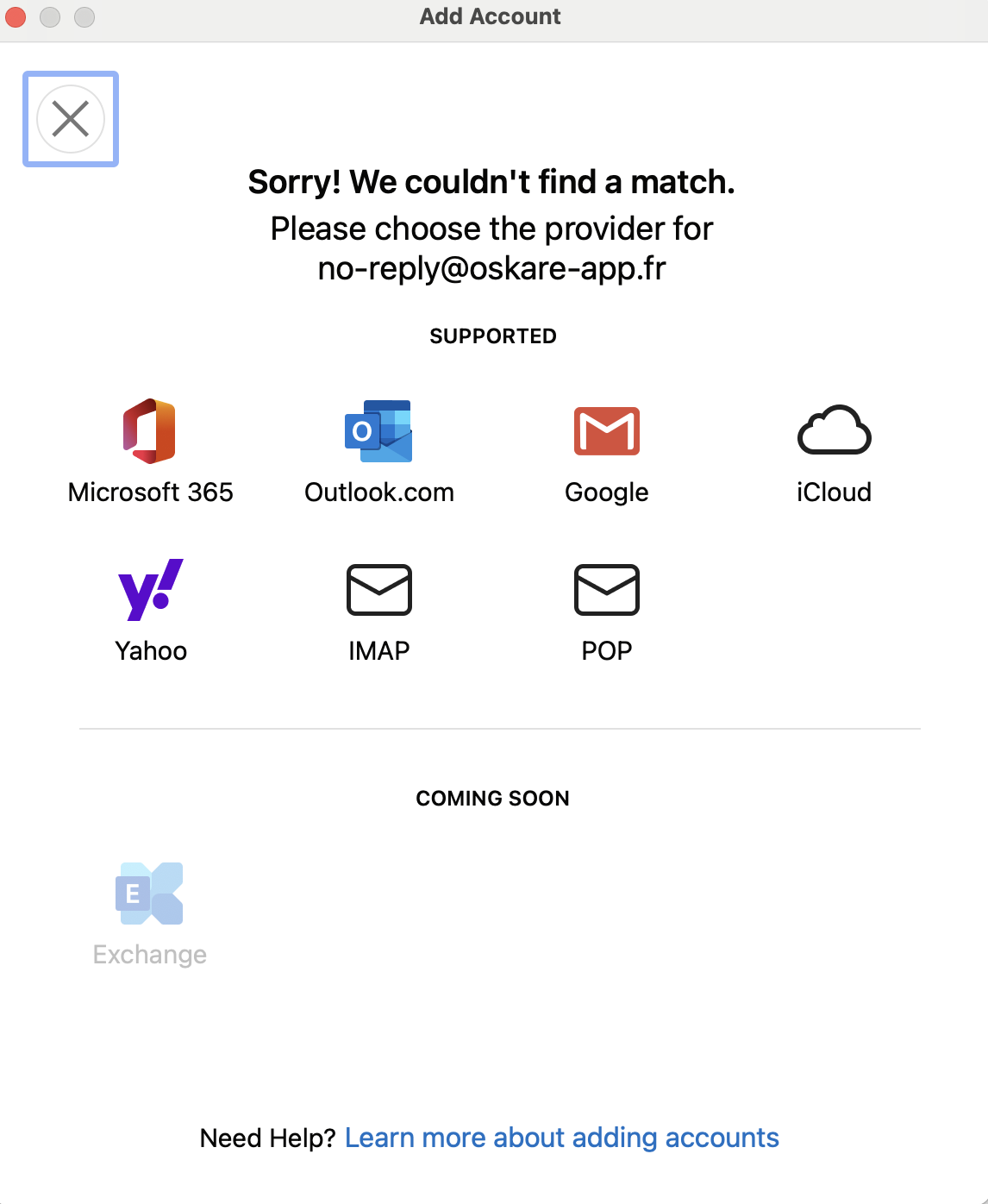
support@oskare-app.fr,no-reply@oskare-app.fr) - Outlook may try to configure the account automatically but it wull fails, proceed with manual configuration.
3. Manual Configuration (If Automatic Setup Fails)
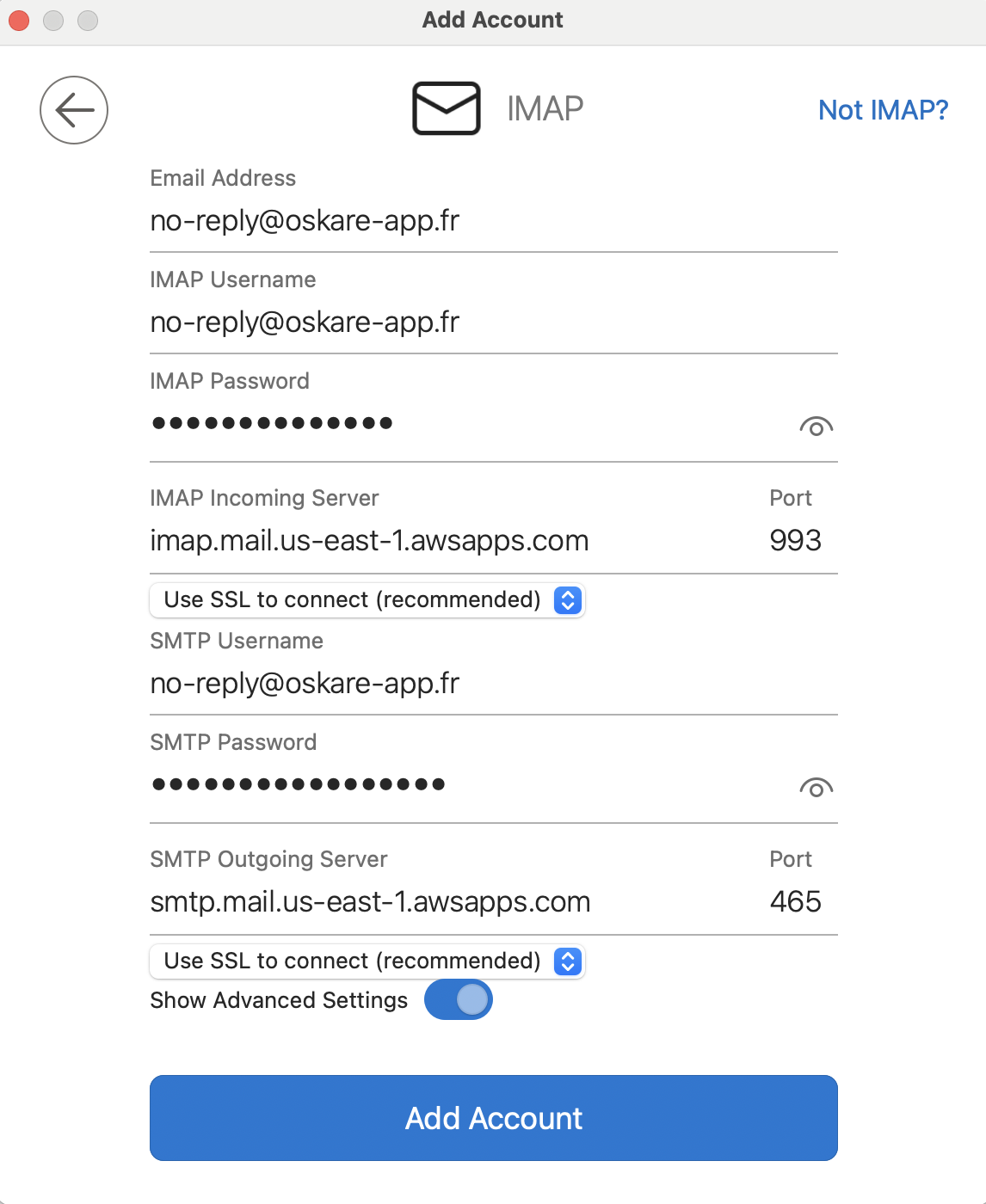
- Choose IMAP for incoming mail settings.
IMAP Settings
- IMAP Password:
ask admin - IMAP Incoming Server:
imap.mail.us-east-1.awsapps.com - Port:
993with SSL enabled
SMTP (Outgoing Mail) Settings
- SMTP Password:
ask admin - SMTP Outgoing Server:
smtp.mail.us-east-1.awsapps.com - Port:
465with SSL enabled
Troubleshooting Tips
- Double-check your email address and password if the login fails.
- Ensure that SSL is enabled for both incoming and outgoing mail settings.
- Confirm the correct AWS region for IMAP and SMTP servers.
For additional help, ask Jonathan or Clément.